Save your licensed EA file
Download the EA/EX4 file supplied by FX Pro Robots and keep it in a secure folder. Do not rename, modify or share the licensed file.

After payment, email your MT4
account number to support@fxprorobots.com
Our support team is available 24/5. If you have
questions about the robot or our website, please
contact us at support@fxprorobots.com
Install your licensed EA/EX4 file with this clear step-by-step guide. Before you begin, confirm the required currency pair, timeframe and MT4 account number for your license.
Download the EA/EX4 file supplied by FX Pro Robots and keep it in a secure folder. Do not rename, modify or share the licensed file.
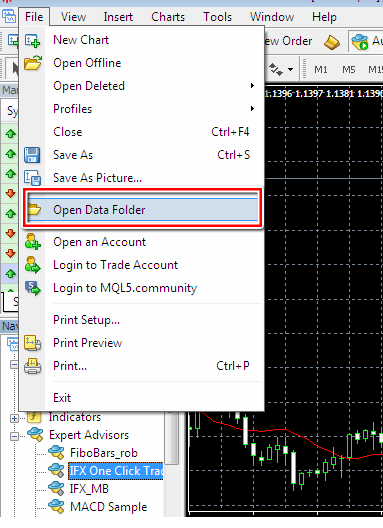
In MetaTrader 4, select File → Open Data Folder. This opens the correct directory for the terminal you are currently using.
Open MQL4 → Experts and paste the EA/EX4 file into the Experts folder. Indicators and scripts should only be placed in their matching folders.
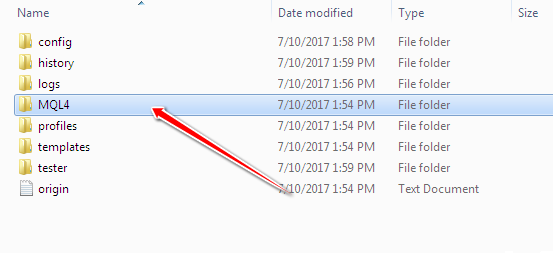
Restart MT4, or open the Navigator, right-click Expert Advisors and choose Refresh. Your EA should now appear in the list.
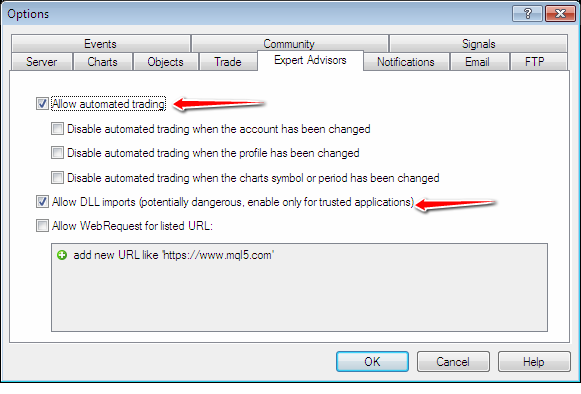
Open Tools → Options → Expert Advisors and allow automated trading according to the EA requirements.
Open the specified currency pair and timeframe. Drag the EA from the Navigator onto the chart, review its inputs and enable Allow live trading.
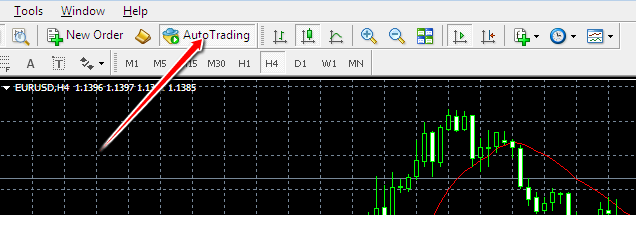
Check the EA status in the upper-right corner of the chart and review the Experts and Journal tabs for messages. Test the setup on a demo account before live trading.